


Editing Digital Templates on Your Phone or Tablet
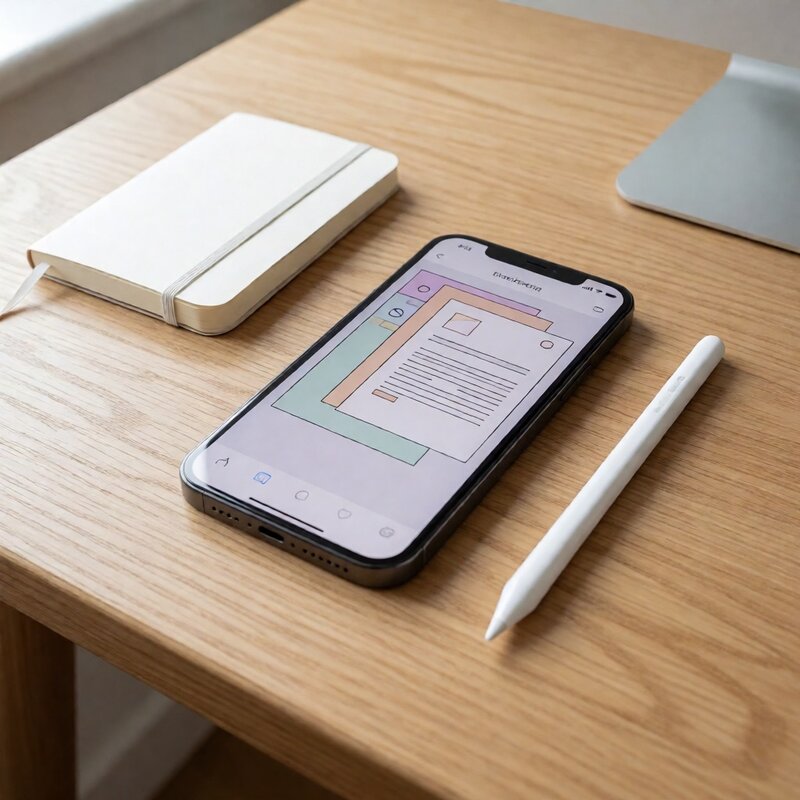
Most digital templates are designed on a desktop, but that is not where most people open them. If you bought a template for an invitation, a resume or a price list and you only have a phone or a tablet, you can usually still finish the job, as long as you pick the right app for the file type.
Match the app to the file, not the other way round
The most common mistake is opening a Word template in an app that cannot hold a fixed layout. Three file families behave quite differently:
- Word (.docx) — editable text and layout. Use Word for iPad or Android, Google Docs, or Pages. Expect line breaks to shift if the template relies on unusual fonts.
- PDF — fixed layout. A PDF template is usually meant to be filled in, not restructured. Use an editor with a text tool, or an app that supports form fields.
- Images (.PNG, .JPG) — flat artwork. Use an editor with a text layer, such as Canva or a photo editor, and place your words over the design.
Install the fonts before you start
Layouts break when a font is missing. The app substitutes something else, the text grows a few percent wider, and a caption that fitted on one line now wraps onto three. Before editing, check which fonts the template uses and install them if your app allows it. If it does not, choose a substitute deliberately, one with a similar width, and expect to resize the text box afterwards.
Work at a usable zoom
Small screens hide overflow. A text box that looks fine at 60 percent zoom can be spilling past its margin when printed. Switch to full-page view first and check the edges of every text box, then zoom in to edit. Turn on any guide or margin display the app offers.
Keep one master copy
Duplicate the file before you start and edit the copy. It is easy to nudge a background image or delete a text box on a touchscreen without noticing, and a clean original is the fastest way back. Save a new version each time you make a big change rather than overwriting the same file.
Before you export or print
- Check that every placeholder is replaced, including any in headers and footers.
- Look at the last page, because trailing blank pages are common after mobile edits.
- Export to PDF rather than sending the editable file to a print shop.
- Open the exported PDF once and scroll through it before you send it on.
A phone or tablet is enough for most template edits. The workflow only fails when the wrong app is used, the fonts are missing, or the page is never checked at full zoom.